
Panels overview
The “Preferences” panel
Section titled “The “Preferences” panel”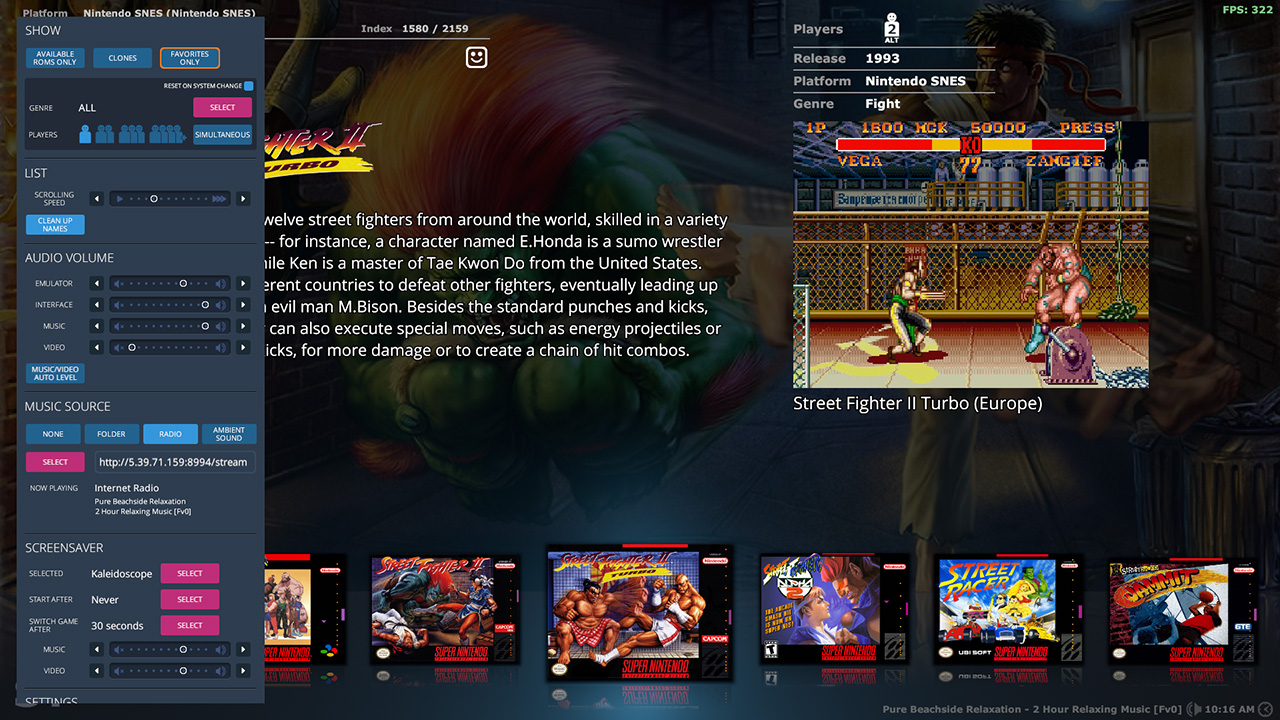 12345678
- mGalaxy comes with great screensavers.
Some of them use background music and/or preview images and videos. - The 'Settings' panel (default key: Left Shift)
- Show/hide the games according to:
- file availability
- his 'clone' state
- his 'favorite' state
- its kind
- its multi-player compatibility
- The list of games can be displayed as text or images.
If text display is selected, this checkbox allows you to 'clean up' the name of the set from the content in brackets / square brackets.
For example, a game named "3-D Tic-Tac-Toe (1980) (Atari, Carol Shaw - Sears) (CX2618 - 49-75123)" is displayed as "3-D Tic-Tac-Toe". - The path to the folder, as well as the URL to the radio station, can also be entered manually.
- This checkbox allows the background music to fade out when the preview video is played.
- mGalaxy can play background music while you browse the game list.
The source of this music can be:- a folder where mGalaxy will grab the .mp3 files and play them randomly.
- an internet radio (mGalaxy integrates an internet radio player)
- an ambient sound (mGalaxy integrates very relaxing sounds)
- Set volumes for:
- the game itself (work with some emulators)
- the sounds of mGalaxy interface
- the background music
- the soundtrack of the game's video preview
The “Controllers” panel
Section titled “The “Controllers” panel”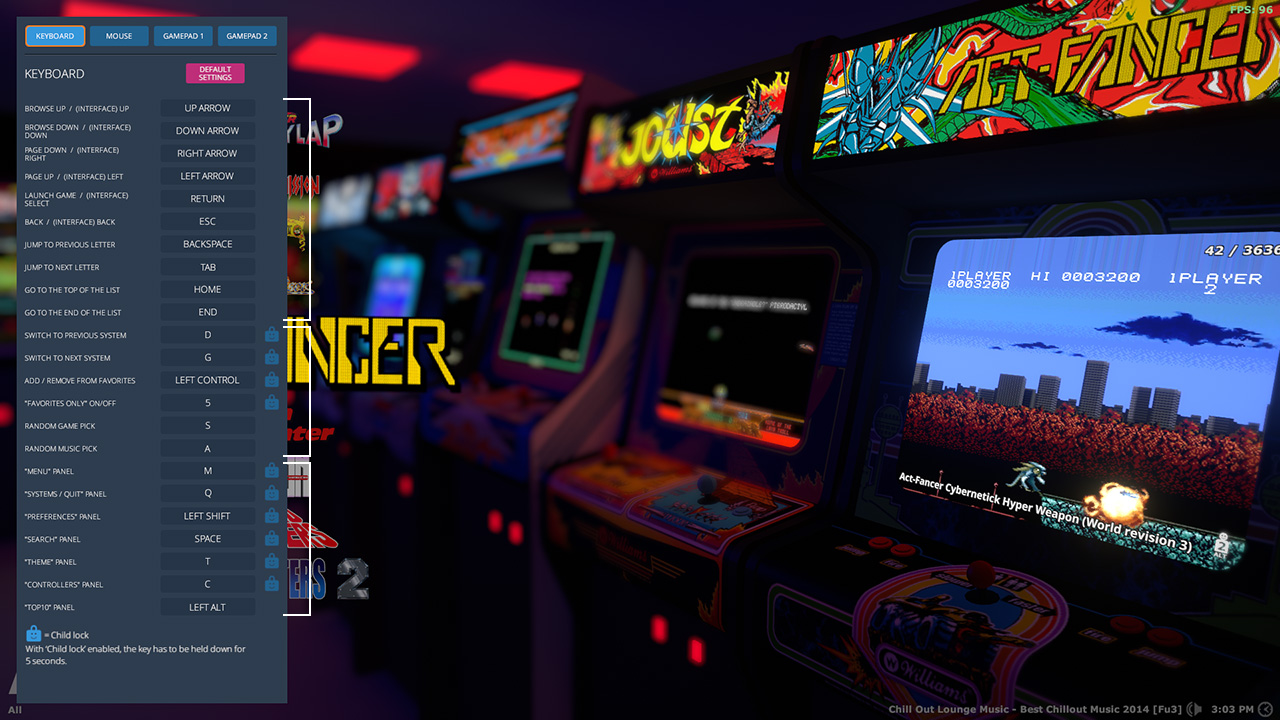 1234567
- Some controls may be assigned a 'child lock'.
Once locked, the key assigned to that control must be held for 5 seconds before acting. - Selection of the controller to be configured.
- The 'Controllers' panel (default key: C)
- Reset the controller to its default settings.
- Navigation and selection.
- Utilities.
- Panels.
The “Menu” panel
Section titled “The “Menu” panel”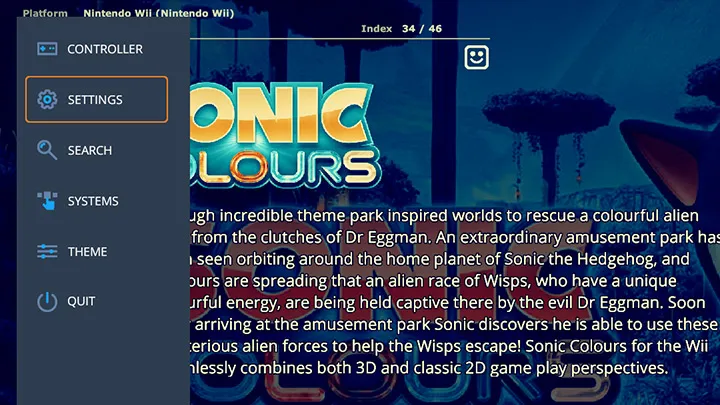
The default key to display this panel is: M
If there’s only one keyboard shortcut you should remember, it’s this one 😉
This panel gives you access to all the other mGalaxy panels!
The “Theme” panel
Section titled “The “Theme” panel”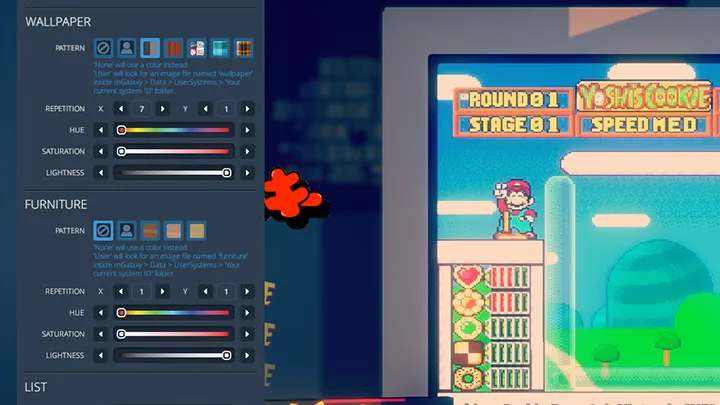
The default key to display this panel is: T
Each theme is highly configurable.
This ranges from basic parameters – like the choice to display the list as text or images – to very specific parameters of the theme, like the choice of pattern and wallpaper color 😉
The “Search” panel
Section titled “The “Search” panel”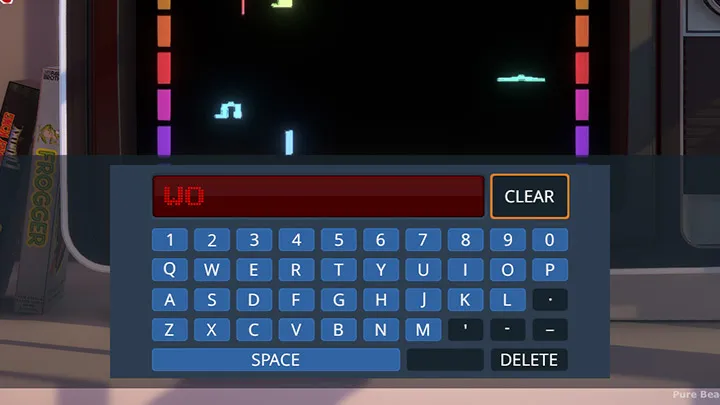
The default key to display this panel is: Space Bar
The keyword can be entered either directly from the PC keyboard or from this virtual keyboard.
The filtering takes effect from the 3rd letter entered.
From this point on, the list will only show the sets containing the text entered.
Closing this panel (the default key to close all panels: ESC) will keep the filtering active.
To return to an unfiltered list, delete the text entered either by clicking on this button or by deleting the characters one by one.
This behavior can be used intelligently to quickly find a game :
- Call the ‘Search’ window.
- Type one or part of a keyword (the list is filtered in real time).
- Close the ‘Search’ window.
- Navigate through the list (which is now filtered) until you find the game.
- Call the ‘Search’ window.
- Delete the keyword and close the panel.
The complete list is displayed again but has scrolled down to the found game.
The “Radio” panel
Section titled “The “Radio” panel”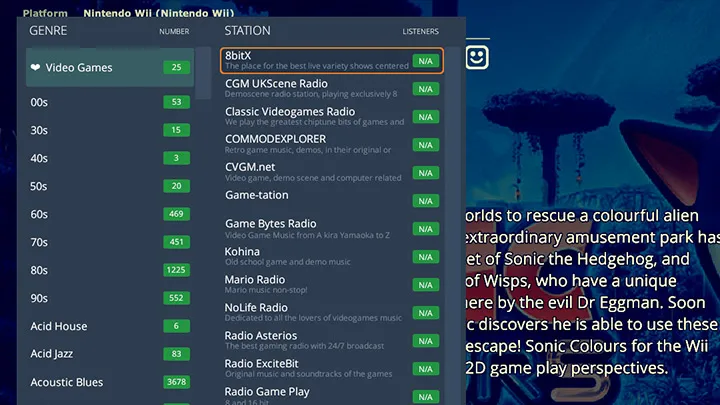
This panel is called called from the ‘Preferences’ panel.
The left-hand column lists the available genres and number of stations available.
To move faster through this list, you can type the first letter of the category you are looking for.
The right column lists the stations available for the selected genre and number of listeners.
The “Systems” panel
Section titled “The “Systems” panel”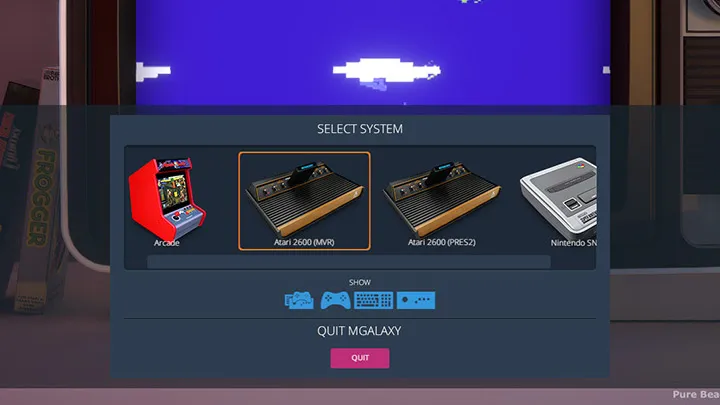
The default key to display this panel is: Q
This panel displays all user systems (those created in mGalaxy_Runway)
This list can be filtered on:
- Groups
- Consoles
- Computers
- Arcades
This panel is also used to exit the application.
Note that you can also quit the application from the “Menu” panel.